Checked on November 15, 2026 against Apple’s instructions for iOS 27.
The short version
- Open Voice Memos. It is in the Utilities folder.
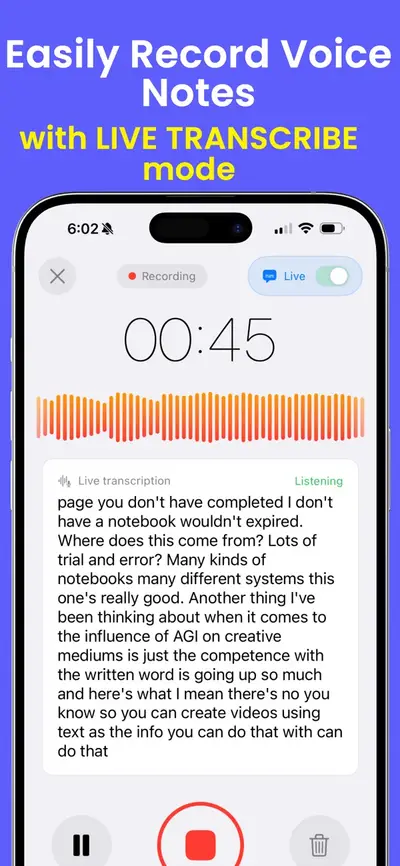
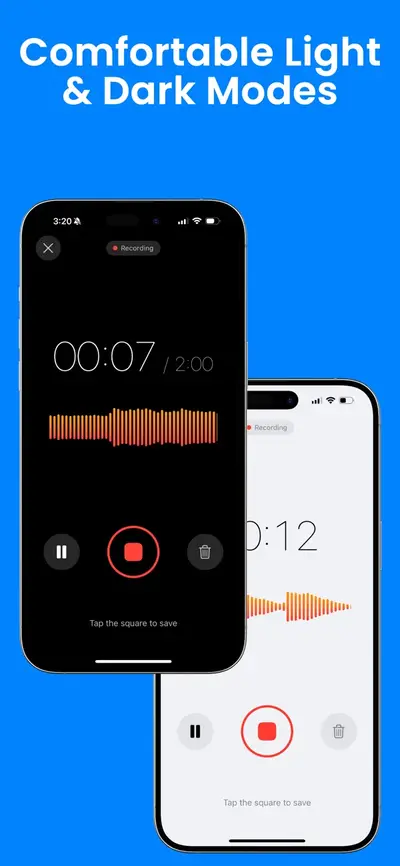
- Tap the Record button.
- Hold the iPhone closer to or farther from the sound to change the level.
- Tap the Stop button to finish.
- The recording is saved as New Recording, or with the name of your location.
Record with the Voice Memos app
Voice Memos records with the iPhone's built-in microphone, a supported headset, or an external microphone. The app sits in the Utilities folder, and you can move it to your Home Screen so it is easier to reach.
- Open Voice Memos and tap the Record button.
- Tap the Stop button when you are done.
The new recording is called New Recording, or gets the name of your location if Location Services is turned on in Settings > Privacy & Security. To rename it, tap the recording, tap the name, and type a new one. An orange dot appears while the microphone is in use.
Pause and resume a recording
You can make a recording in parts, pausing and resuming as you go.
- Tap Record, then swipe up from the top of the waveform to see more detail.
- Tap Pause to stop for a moment, then Resume to carry on.
- Tap Play to listen back.
- Tap Done to save.
You can switch to another app while you record, as long as that app does not play sound. If it starts playing audio, Voice Memos stops recording. To silence the start and stop tones, turn on Silent mode first.
Quick ways to start
On iPhone models that have an Action button, you can set it to start Voice Memos.
- Open Settings and tap Action Button.
- Swipe until you reach Voice Memo.
After that, press and hold the Action button to use it. Only some iPhone models have an Action button.
Keeping the Voice Memos icon on your Home Screen is the other quick option Apple suggests.
Settings that change how you sound
- Recording Mode: go to Settings > Apps > Voice Memos > Recording Mode and pick Mono, Stereo or Spatial Audio. Spatial Audio is not on every model. Apple says supported iPhones record in Spatial Audio with the built-in microphone, and earlier models record in Mono unless you turn on Stereo.
- Background sound: open Voice Memos, then open Control Center, tap Voice Memos at the top, and choose Voice Isolation to cut noise or Wide Spectrum to keep it. Wide Spectrum is not on every model.
- Enhance Recording: tap a recording, tap More, tap Options, and turn it on to reduce background noise and echo when you play it. It works with Mono and Stereo recordings.
- Layers: on supported models you can add a vocal layer over a recording. Apple first offered it on iPhone 16 Pro and iPhone 16 Pro Max with iOS 18.2, and you do not need headphones.
Trim or replace part of a recording
Tap the recording, then tap the Edit Recording button.
- Trim: tap More, tap Trim, and drag the yellow handles. Tap Trim to keep the part you selected, or Delete to cut it out.
- Replace: drag the waveform so the playhead sits where the new audio should start, then tap Replace and record.
Tap Done, then choose Save Recording to overwrite the original or Save as New Recording to keep it. Deleted recordings stay in Recently Deleted for 30 days by default.
Sync recordings with iCloud
With iCloud turned on for Voice Memos, your recordings show up on your iPhone, iPad and Mac.
- Open Settings and tap your name.
- Tap iCloud, then See All.
- Turn on Voice Memos.
Each device has to be signed in to the same Apple Account. Once the switch is on, your recordings stay up to date across those devices on their own, so a memo you record on your iPhone is ready to play on your Mac or iPad without sending it.