Checked on November 15, 2026 against Apple’s instructions for iOS 27.
The short version
- Open the Voice Memos app. It is in the Utilities folder.
- Tap the recording you want as text.
- Tap the More button.
- Tap View Transcript to read it, or Copy Transcript to copy all of the text.
- Paste the text into an email, a text file or another app.
What you need
Apple lists these requirements for transcripts in Voice Memos:
- iOS 18 or later.
- An iPhone 12 or later.
- Speech in one of these languages: English (all variants), Spanish, Portuguese, Italian, French, German, Japanese, Korean, Simplified Chinese or Traditional Chinese.
- A country or region where the feature is offered. It is not available everywhere.
The steps here were checked against Apple's guide for iOS 27. Older recordings made on iOS 17 or earlier get a transcript automatically when you open them, if they contain speech.
View or copy the transcript after recording
- Open Voice Memos.
- Tap the recording.
- Tap the More button.
- To copy part of it, tap View Transcript, select the text, then tap Copy.
- To copy all of it, tap Copy Transcript.
Then open another app, such as Mail or a text file, and paste. Apple's guide covers viewing, copying and searching the text. It does not describe a way to edit the transcript inside Voice Memos.
Watch the transcript while you record
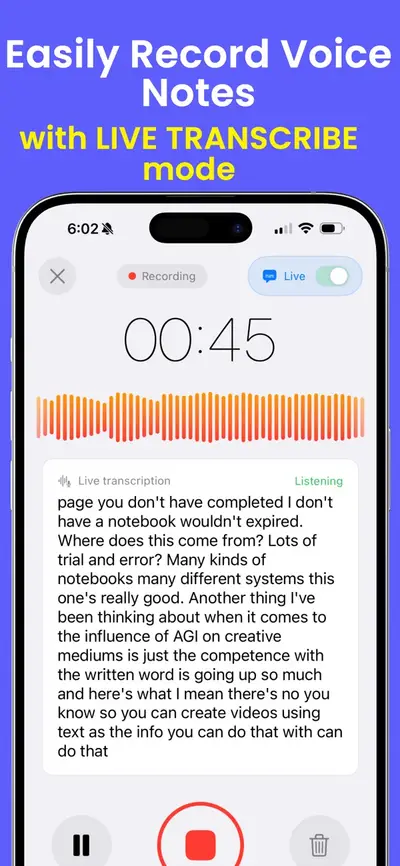
You can see the words appear live while Voice Memos is recording.
- In Voice Memos, tap the Record button.
- Swipe up from the top of the waveform, then tap the Transcription button.
- The words appear as you speak, with the current word highlighted.
- Tap the Transcription button again to go back to the waveform.
- Tap Pause to pause, Resume to go on, and Done to save.
You can also view the transcript after you stop, using the steps in the section above.
Search your recordings by what was said
Tap the Search button in Voice Memos and type a word. The list shows only recordings with that word in the title or in the transcript. When you select a word in a transcript, the playhead jumps to that spot in the audio.
On an iPhone 15 Pro, iPhone 15 Pro Max or any iPhone 16 model or later with Apple Intelligence, you can also use Writing Tools to summarize a transcript. Apple Intelligence is not offered in every language or region.
Record with a live transcript in Notes
The Notes app can record and transcribe too, on iPhone 12 and later with the device language set to one of the same ten languages.
- Open a note in Notes.
- Tap the Attachments button, then tap Record Audio.
- Tap the Record button. Tap the Transcription button to see the live transcript.
- When you finish, tap Pause, then Done.
Later, tap the recording, then the Transcription button. Tap the More button for Find in Transcript, Add Transcript to Note or Copy Transcript. Deleting the recording also deletes its transcript.
Get a summary in Notes
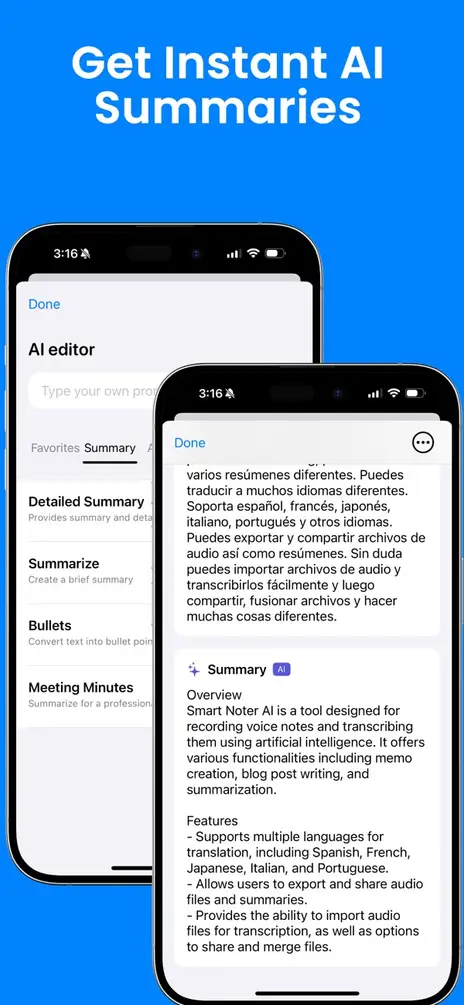
With Apple Intelligence, Notes can summarize a recording. Open the note, tap the recording, then tap Summary. You can copy or share the summary from the More button at its top.
On iOS 27 this needs an iPhone 15 Pro, iPhone 15 Pro Max, or an iPhone 16 model or later. It is not offered in every language or region, so check Apple's feature availability page for yours.