Online Voice MemoGet the app

Home / Mic test

Test your microphone

See whether your mic picks up sound, which microphone your browser is using, and how you sound. It takes ten seconds.

Press start, then say something.

The sound stays in your browser. Nothing is uploaded or saved.

How the test works

  1. Press startAllow the microphone when your browser asks.
  2. Say somethingThe bar should move as you speak, and the page tells you when it hears you.
  3. Listen backRecord five seconds and play them to hear what others hear.

What the details mean

Microphone is the device your browser is listening to. Computers often have several, such as a built-in mic, a webcam and a headset, and the browser may not pick the one you expect.

Sample rate is how many times a second the sound is measured. 44,100 Hz and 48,000 Hz are both normal.

Noise suppression and echo cancellation are clean-up steps that browsers usually switch on by default. They make speech clearer and can make music sound thin.

Once the mic works, you can record a voice memo right here.

More tools and guides

AI Note Taker Voice Recorder for iPhone

From recording to notes, on your iPhone

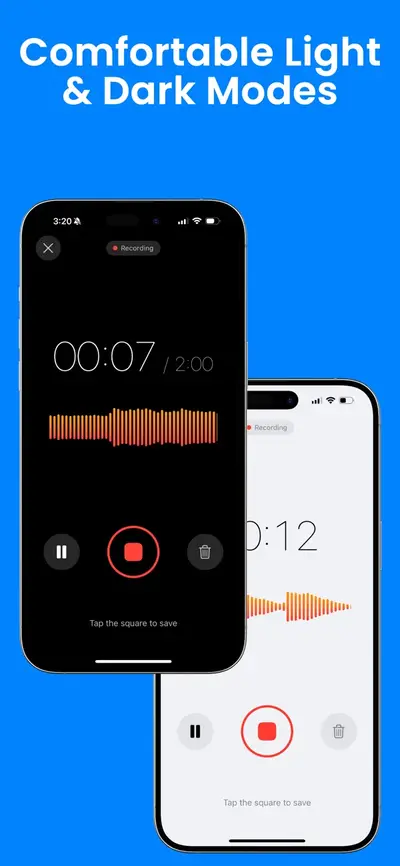
  • Record for up to 4 hours, with pause and resume
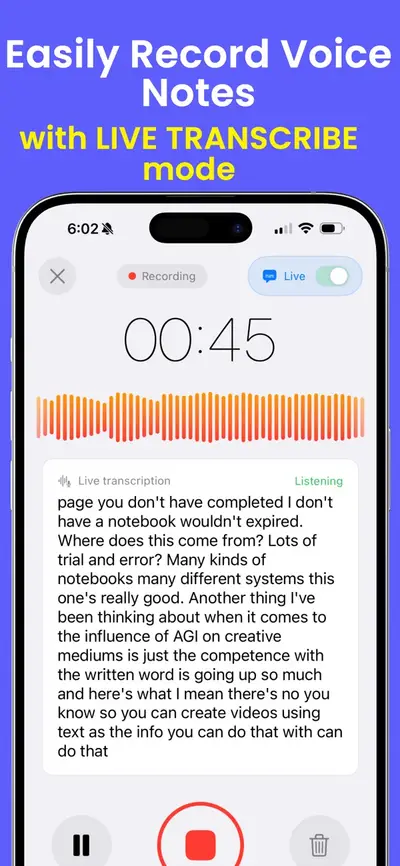
  • See a live transcript while you record
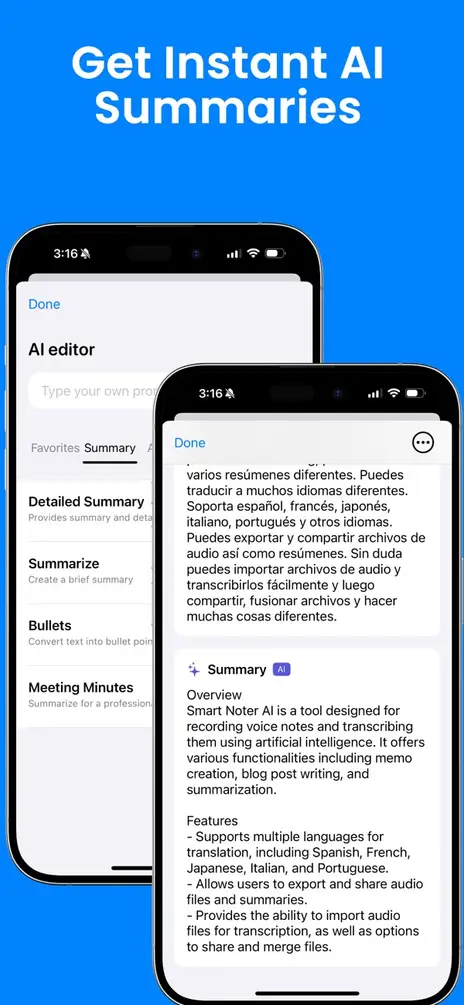
  • Turn any recording into a summary, bullet points or meeting minutes
  • Import an audio file from the Files app (imported audio is transcribed as English)
  • Translate notes, organize them in folders, and share them as text or PDF

Download AI Note Taker Voice Recorder on the App Store

Scan with your iPhone camera to get the app

Free to download. Using the app needs a subscription. Transcripts and summaries are made with OpenAI after you agree in the app. On your Home Screen the app is named Smart Noter.
Questions and answers

Is my microphone recorded or uploaded?

No. The sound is measured inside your browser to move the level bar. The five-second sample is kept only in this page’s memory so you can play it back, and it is gone when you close or reload the page.

The bar does not move. What should I check?
  • That you allowed the microphone when the browser asked. If you blocked it, change it in the browser’s settings for this site.
  • That the microphone is not muted by a switch on the headset or cable.
  • That the right microphone is chosen. If the list under the bar shows more than one, try the others.
  • That the input level is not turned all the way down in your computer’s sound settings.
  • That another app, such as a video call, is not holding the microphone.
The bar moves but people still cannot hear me in calls.

Then the microphone works, and the problem is in the calling app. Open that app’s audio settings and choose the same microphone that this page names.

Why does the page ask for permission?

Browsers do not let any website listen until you allow it. The permission is for this site only, and you can take it back at any time in your browser’s settings.

What does the play-back sample tell me?

The level bar shows that sound is arriving. The sample lets you hear what it sounds like to others: too quiet, distorted, echoing or noisy.